After using Marketo for 2 years, I realized that Marketo as a marketing automation software is like the movie- Inception- but instead of dreams, there are puzzles within a puzzle. You try to solve a new piece of it every day.

This blog is to make your lives easier with Marketo, as I will discuss how I learned to use it and what difficulties and mistakes I encountered along the way.
Basics of Smart Campaigns
Smart campaign is one of the most powerful fuels that helps run the engine of Marketo. To set up a Smart Campaign, we primarily focus on 3 sections: Smart List, Flow, and Schedule.
Smart List
Consider Smart List as the list of users you want to target for the campaign. Smart lists have two modes:
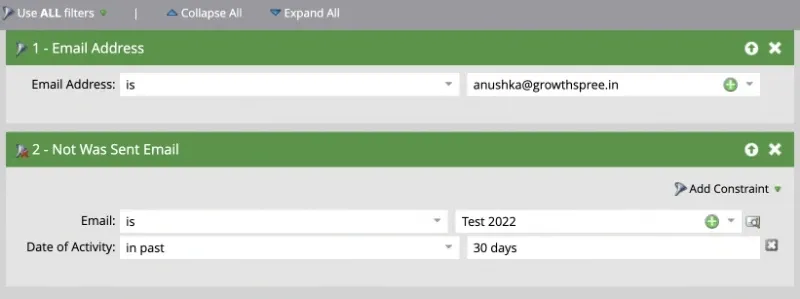
- Batch Campaign: Batch contains only filters within the smart list (and no triggers). With filters, the campaign is set to be sent at a specific time and does not run all the time. Filters usually include fields of actions that have happened in the past (for example, email was sent, filled out a form, etc.) or fields with personal attributes that already exist, for ex, fields like name, email address, city, country, etc. This campaign can recur daily, weekly, etc., and you can also run them in real time.
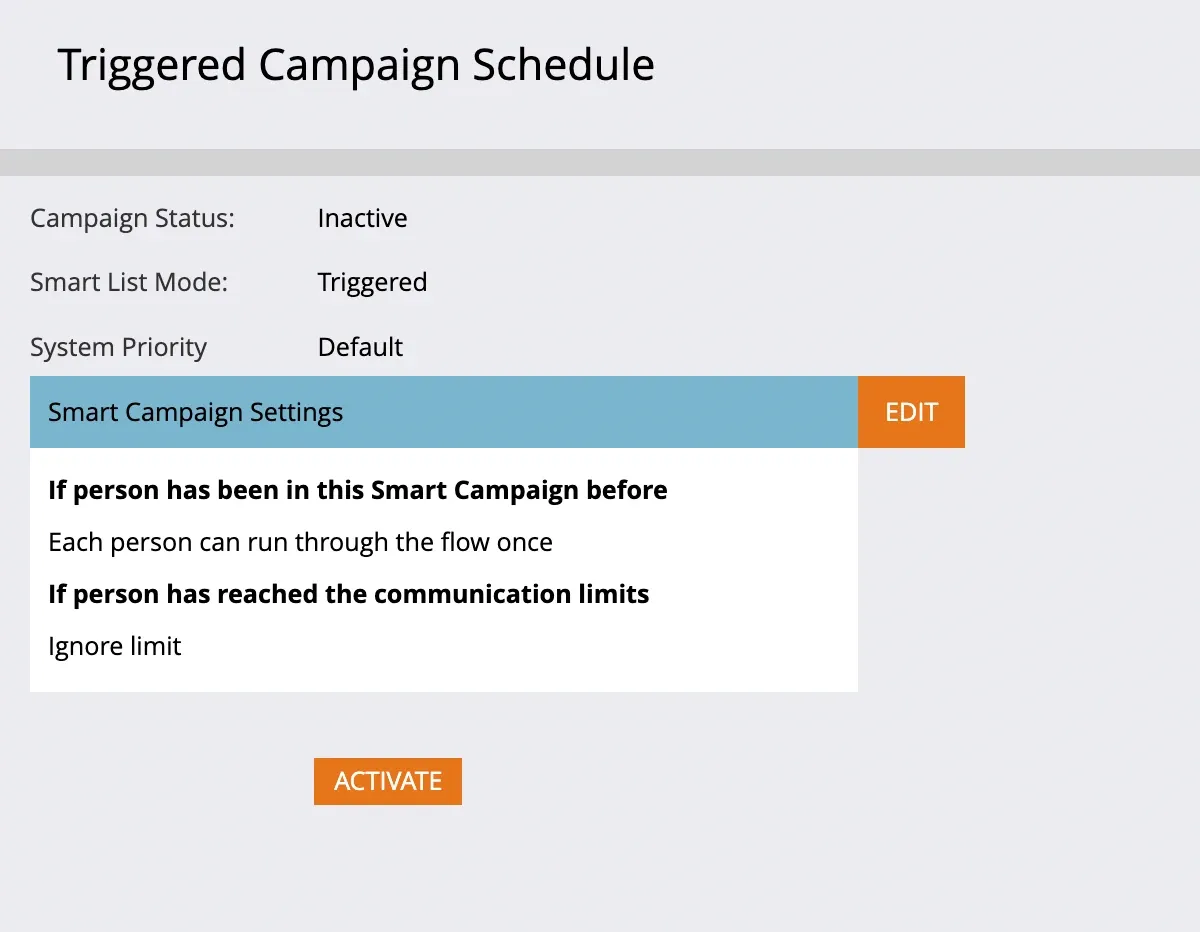
- **Trigger Campaign:**Batch contains triggers within the smart list. With triggers, the campaign is set to be active and runs all the time as soon as the smart list conditions are fulfilled for any person. Triggers usually include fields of actions that will happen (for example, clicks links in an email, fills out a form, etc.).
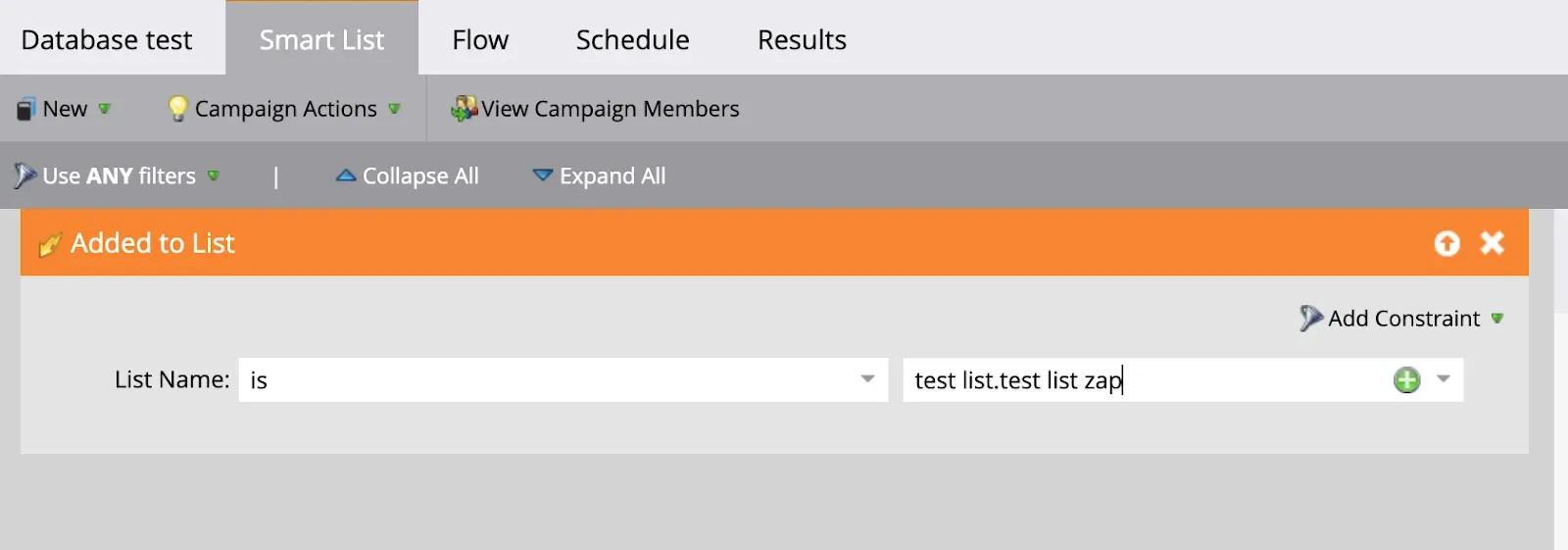
💡Note: Filters (Batch) are green in colour, while Triggers are orange in colour.
💡Note: If at least 1 trigger is included in the smart list, the mode is automatically considered triggered.
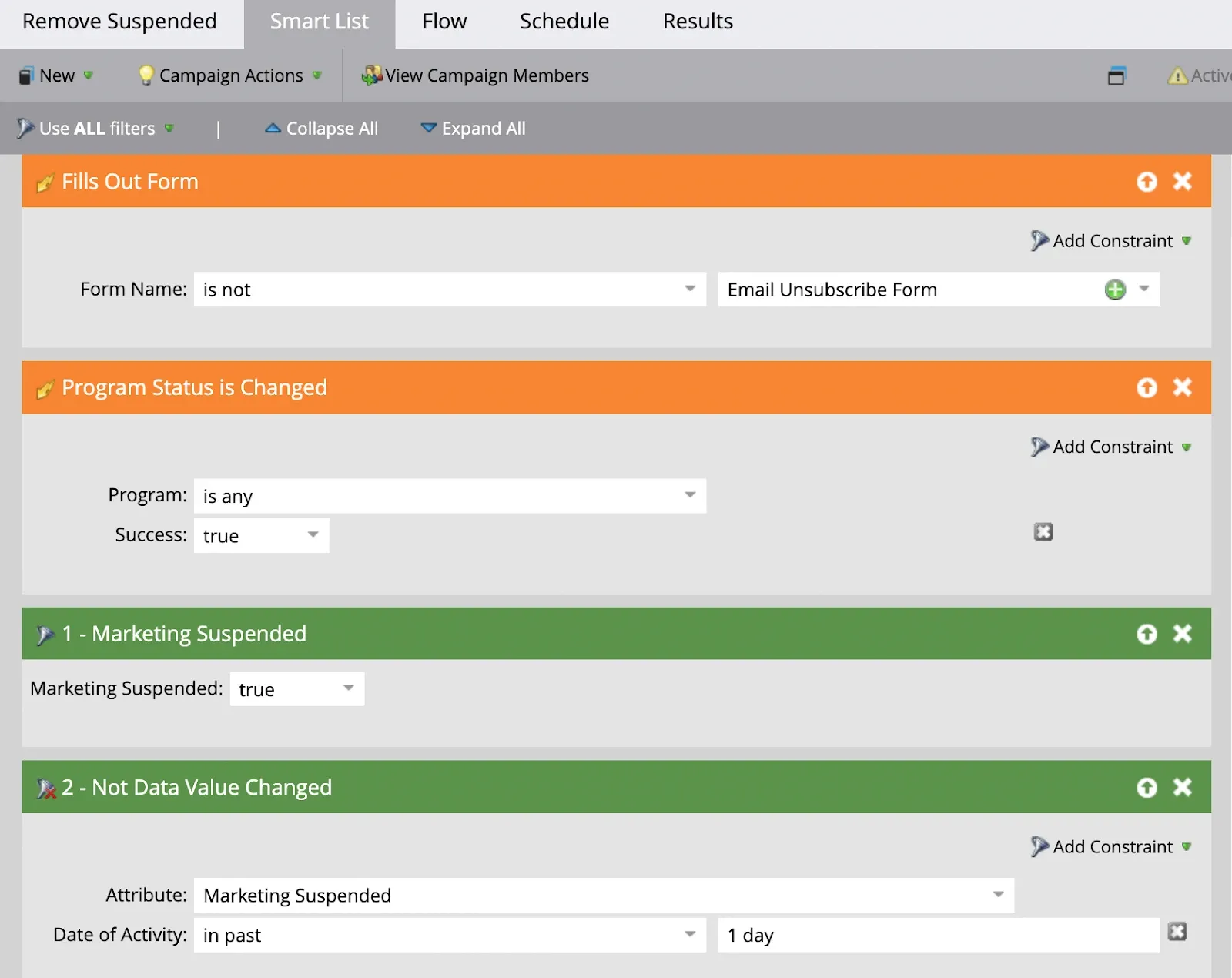
Advanced Smart List Rule Logic (All & Any)
Advanced logic can only be used if there are 3 or more filters.
All: 1 and 2 and 3
Any: 1 or 2 or 3
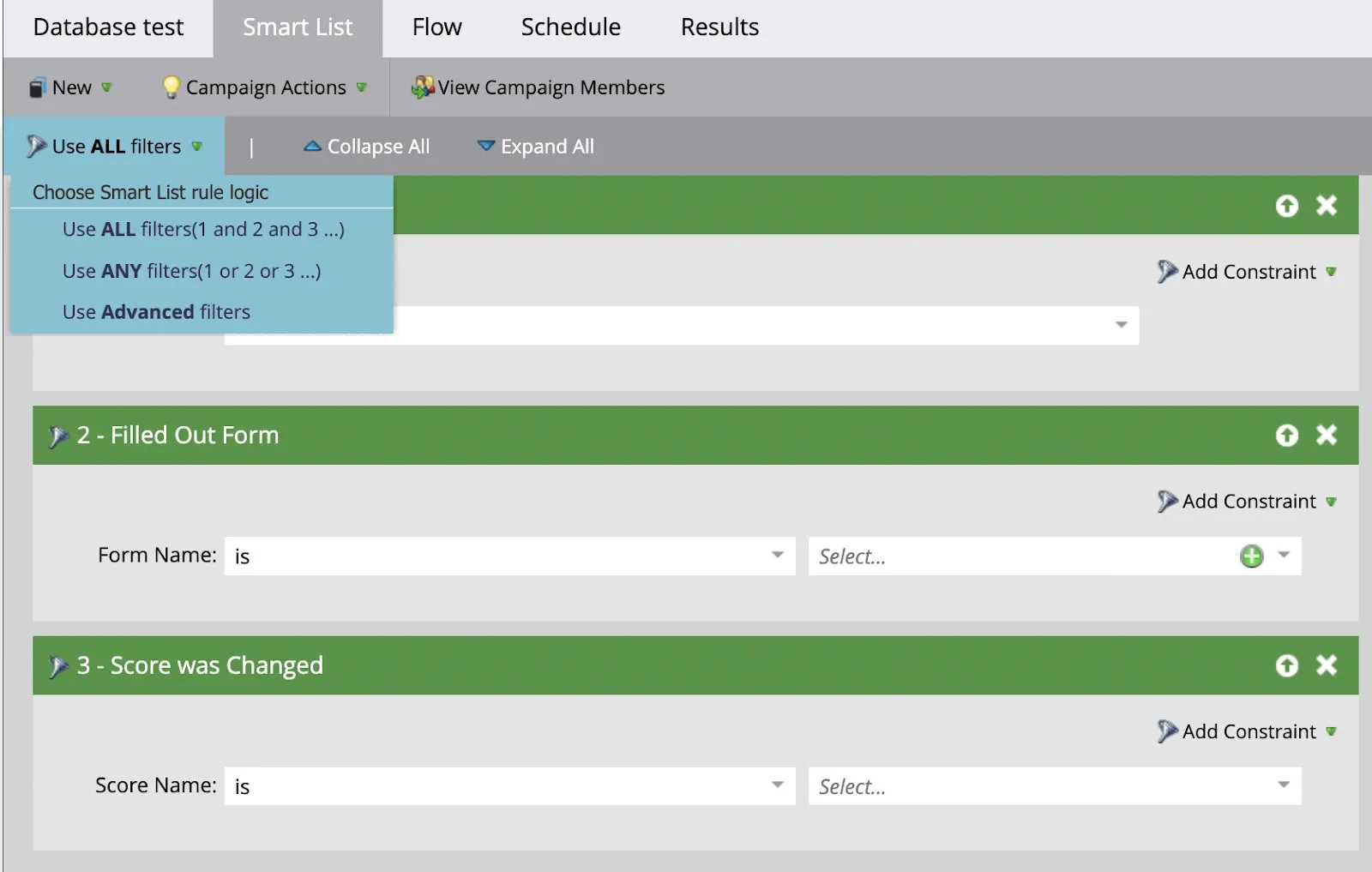
Other rule logics:
1 and (2 or 3)
1 and (2 or ( 3 and 4))
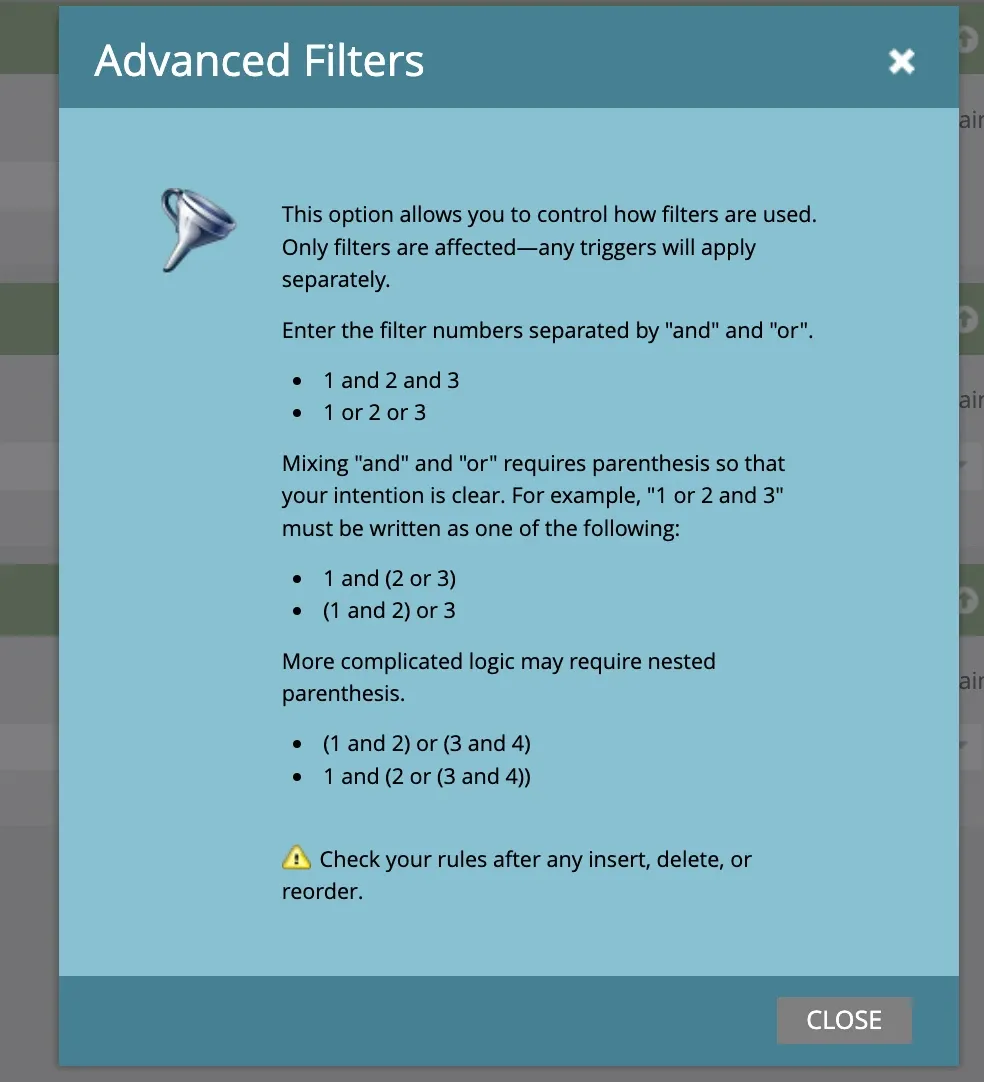
Flow
After a bunch of people get qualified using the smart list, we need to instruct Marketo on what to do with them. Flow steps help us define the actions to take upon those users. Flow steps work in the order they are set up, but we can re-order them.
What are the basic actions you can take?
- Add people to any of the lists in Marketo

- Change Data Values like Attributes of Product interest, Source, Score, etc.

- Delete Person

- Add people to the engagement program

- Remove from flow steps
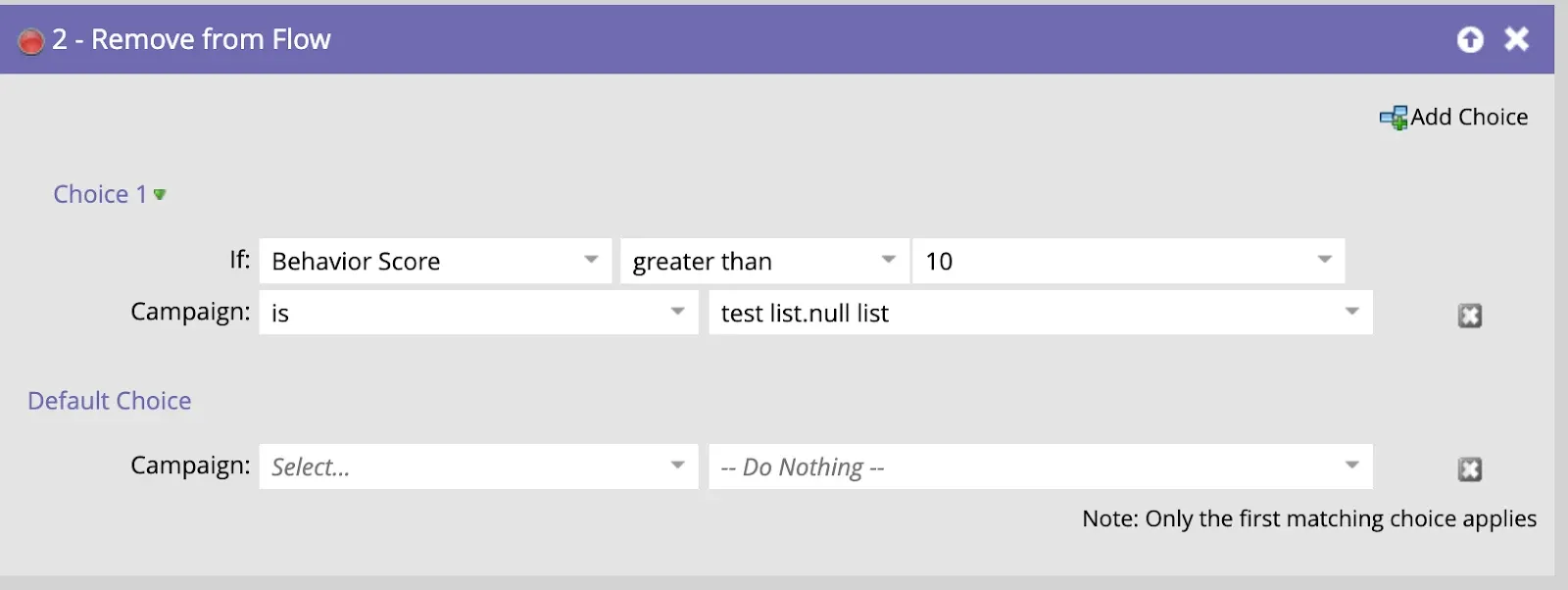
In the Remove from Flow step, you can choose from which campaign you want to remove the people. If you want to add a choice, you can select the basis from which field you want to remove people, for example, a behaviour score of more than 10, etc. And, if you want people other than those qualifying the filter to continue, under Default Choice, don’t select anything so that it shows “Do Nothing”.
- Remove from any list

- Call Webhook (to send Slack alert)

- Requesting another campaign (to connect one campaign to another)

- Change program status

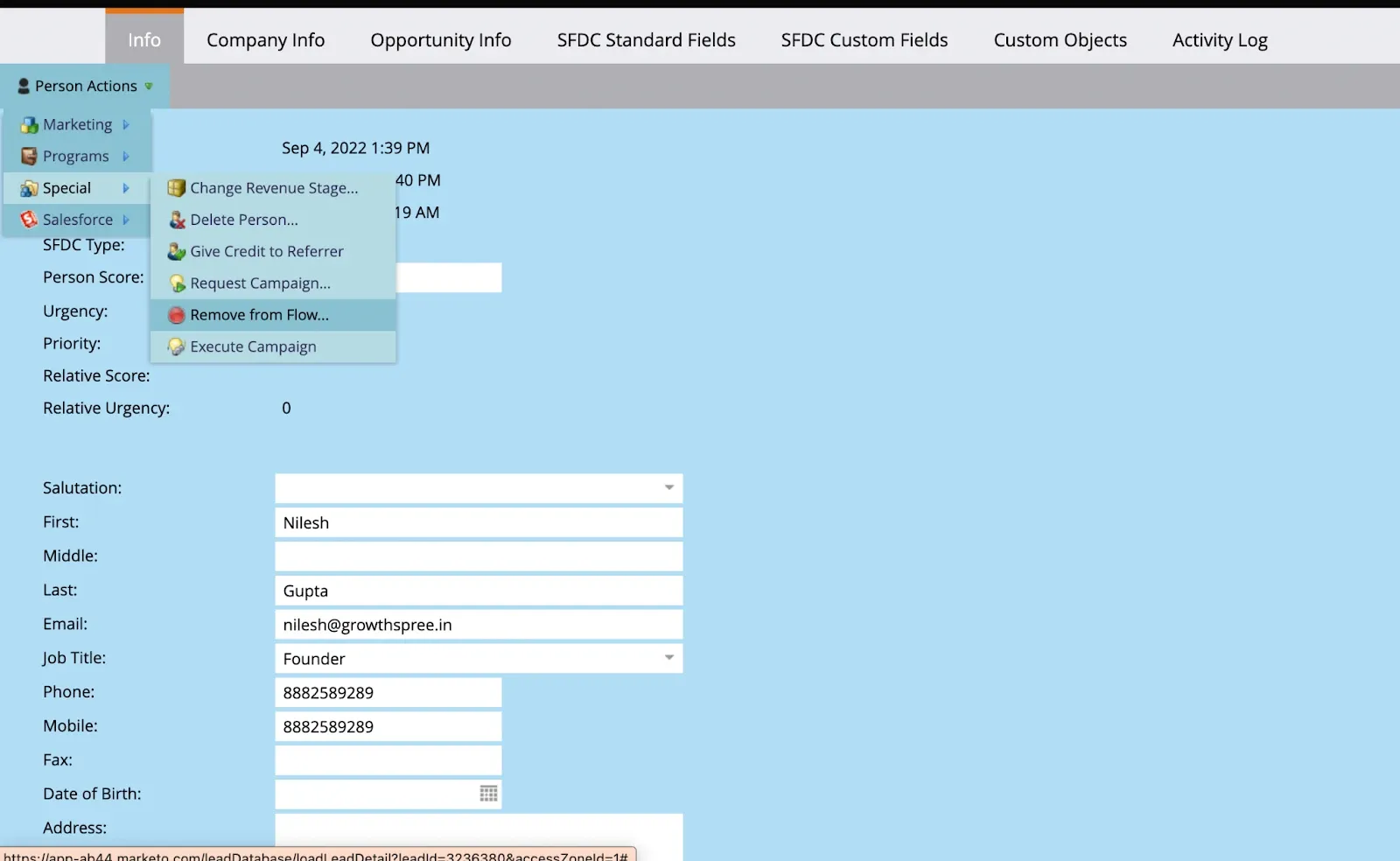
💡Note: Suppose a campaign is run or turned active, and a person has entered the flow steps after qualifying for the smart list. Now, we want to turn off the campaign due to some error or deadline of an event. Turning off will not allow the future qualifying people to enter the campaign, but the flow steps will be completed for all the users who have entered the campaign. These people will go through each step of the flow.
To remove these people, we can manually remove each person by clicking on their profile and selecting remove from the flow under Person Actions, as shown in the below picture.
Schedule
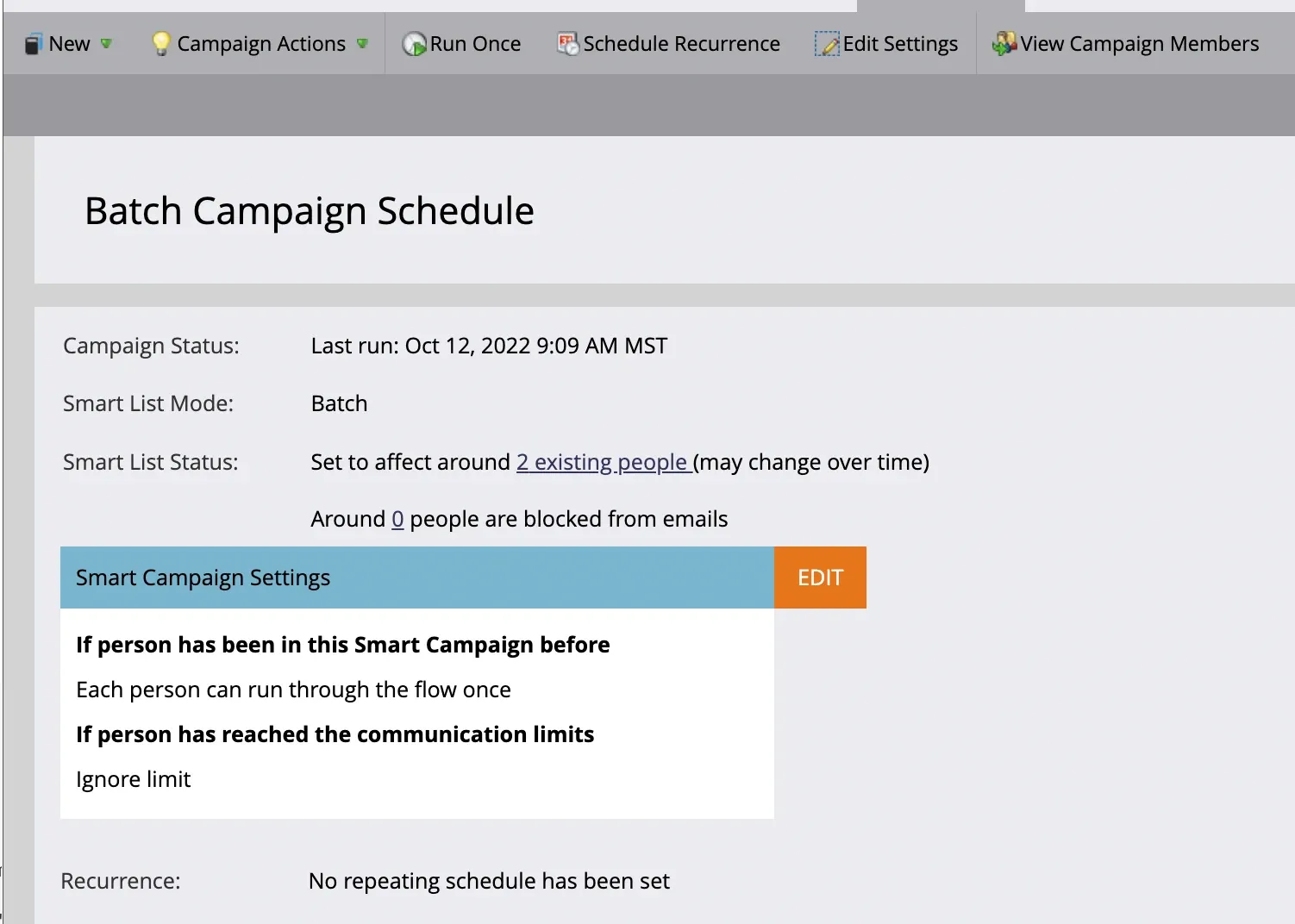
**Scheduling depends on what type of mode your campaign is- Batch or Trigger.For the Batch Campaign, you can schedule it for later at a particular time or run the program in real time.
You can also schedule a recurring batch program by selecting the recurrence period: daily, weekly, or monthly. You can also enter the start and end date for your campaign.
For Triggered Campaigns, you can make them active or inactive anytime.
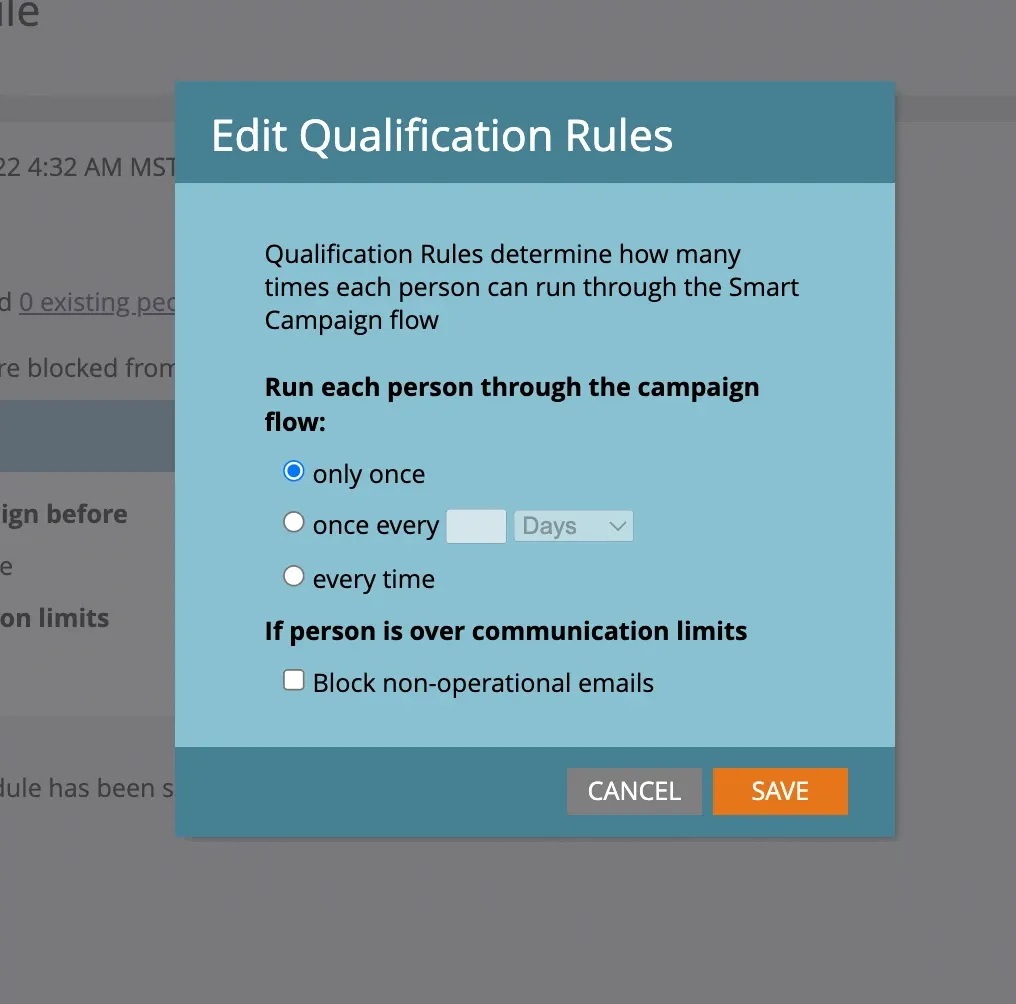
Under the schedule section, you can also choose if you want to run each person through the campaign once, twice, or all the time.
And this is how we set up a basic smart campaign. All we need to know beforehand is:
- the people who will get affected
- what will happen to them?
- is it going to be sent all the time or at a particular time, like once a week, a month, etc.?