Complete guide: This blog covers LinkedIn specifically. For the unified guide covering all platforms — Google Ads, Meta/Facebook, LinkedIn, and Zapier — read our 2026 complete guide to sending offline conversions from HubSpot to every ad platform.
For B2B SaaS companies, the customer journey rarely follows a simple path. A prospect might click your LinkedIn ad today, visit your website multiple times over the next few weeks, download a whitepaper, attend a webinar, and finally convert into a paying customer through a sales call three months later. If you’re only tracking the initial ad click without connecting it to the final sale, you’re essentially flying blind when it comes to understanding your true ROI.
This is where LinkedIn’s Conversions API and HubSpot integration become game-changers. By sending offline conversion data from HubSpot to LinkedIn Ads, you can close the attribution loop and gain visibility into which campaigns are actually driving revenue—not just form submissions.
Why Offline Conversion Tracking Matters for B2B SaaS
The traditional approach to tracking LinkedIn ad performance focuses heavily on immediate, online actions like form fills or demo requests. While these metrics are useful, they miss a critical piece of the puzzle for B2B companies where sales cycles can stretch from weeks to months.
Consider these common B2B scenarios that standard tracking misses:
The Multi-Touch Journey: A prospect sees your LinkedIn ad, browses your website without converting, returns three weeks later through organic search, and eventually books a demo through an SDR outreach. Without offline conversion tracking, LinkedIn has no way to know that initial ad impression contributed to a closed deal.
Phone and In-Person Sales: Many enterprise deals involve phone conversations, in-person meetings, or events. When a prospect who clicked your ad six weeks ago finally signs a contract after multiple sales interactions, that conversion happens entirely outside of LinkedIn’s native tracking capabilities.
CRM-Based Conversions: The most important conversion for your business—a closed-won deal in your CRM—typically occurs long after the initial ad interaction and involves multiple touchpoints that standard pixel-based tracking cannot capture.
Research indicates that B2B buyers engage with a company across various channels before making purchase decisions. By connecting your CRM data to LinkedIn, you’re providing the ad platform with the complete picture it needs to optimize campaigns for what truly matters: revenue, not just clicks.
Understanding LinkedIn’s Conversion Tracking Methods
LinkedIn offers multiple approaches to track conversions, and understanding the differences is crucial for B2B SaaS marketers.
LinkedIn Insight Tag (Online Conversions)
The LinkedIn Insight Tag is a JavaScript snippet that tracks website-based conversions in real-time. It places a cookie on visitors’ browsers to match them with LinkedIn member profiles and tracks predefined conversion events like page views or form submissions.
Best for: Immediate website actions like demo requests, whitepaper downloads, or trial signups.
Limitations: Only captures conversions that happen on your website during the same session or shortly after an ad click. It cannot track offline sales, phone conversions, or delayed CRM events.
Conversions API (Online and Offline Conversions)
The Conversions API enables server-to-server data transfer, allowing you to send conversion events directly from your backend systems or integrated platforms like HubSpot. This method operates independently of browser cookies, making it more reliable and privacy-compliant.
Best for: CRM conversions, offline sales, phone calls, in-person events, and any conversion that happens outside your website.
Advantages: Works without cookies, captures delayed conversions, and provides more complete attribution for complex B2B sales cycles.
Step 1: Connect Your LinkedIn Ads Account to HubSpot
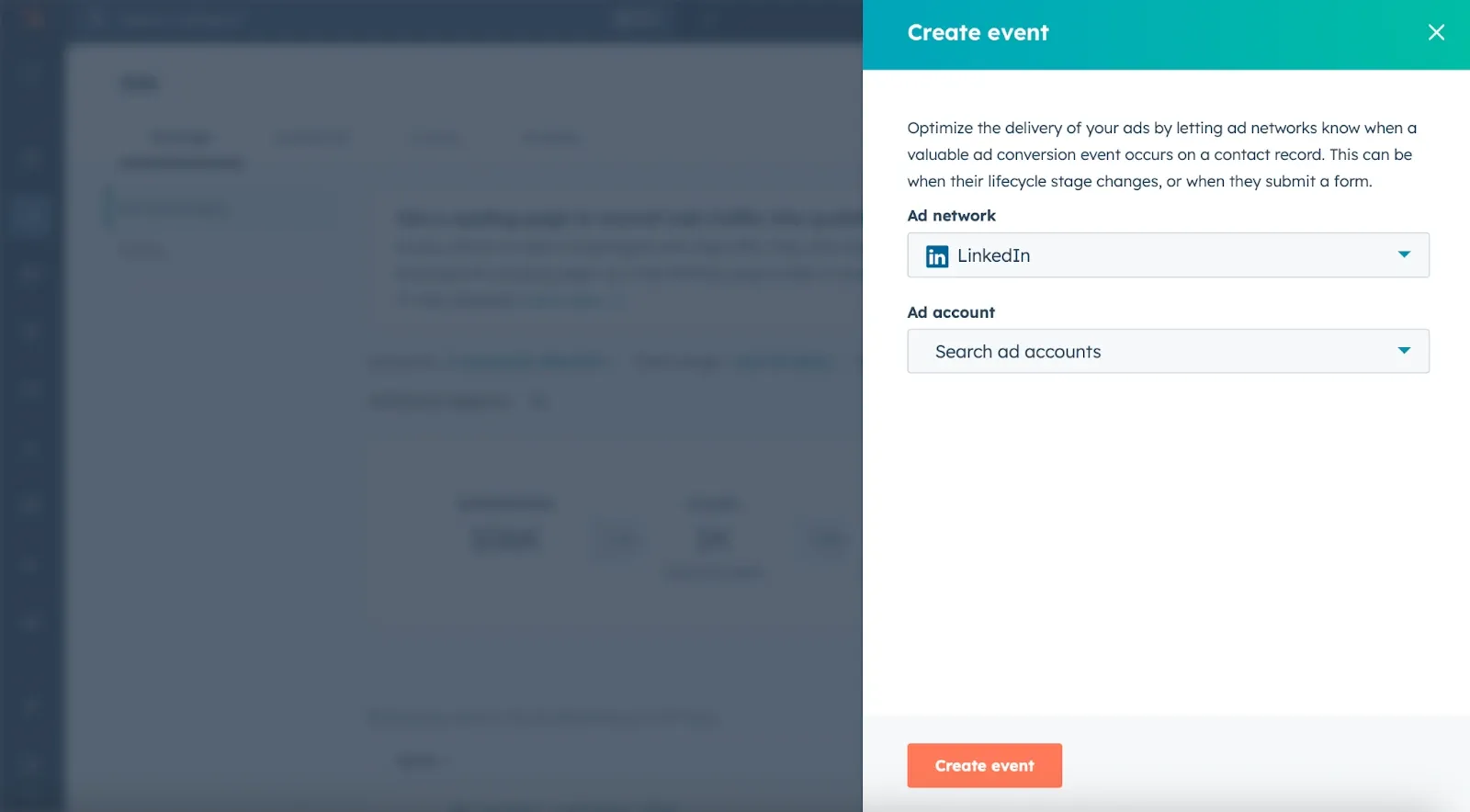
If you haven’t already connected LinkedIn to HubSpot:
- Navigate to Marketing > Ads in your HubSpot account
- Click Connect Account and select LinkedIn
- Authorize HubSpot to access your LinkedIn Ads account
- Select the specific ad account you want to connect
Step 2: Create Conversion Events in HubSpot
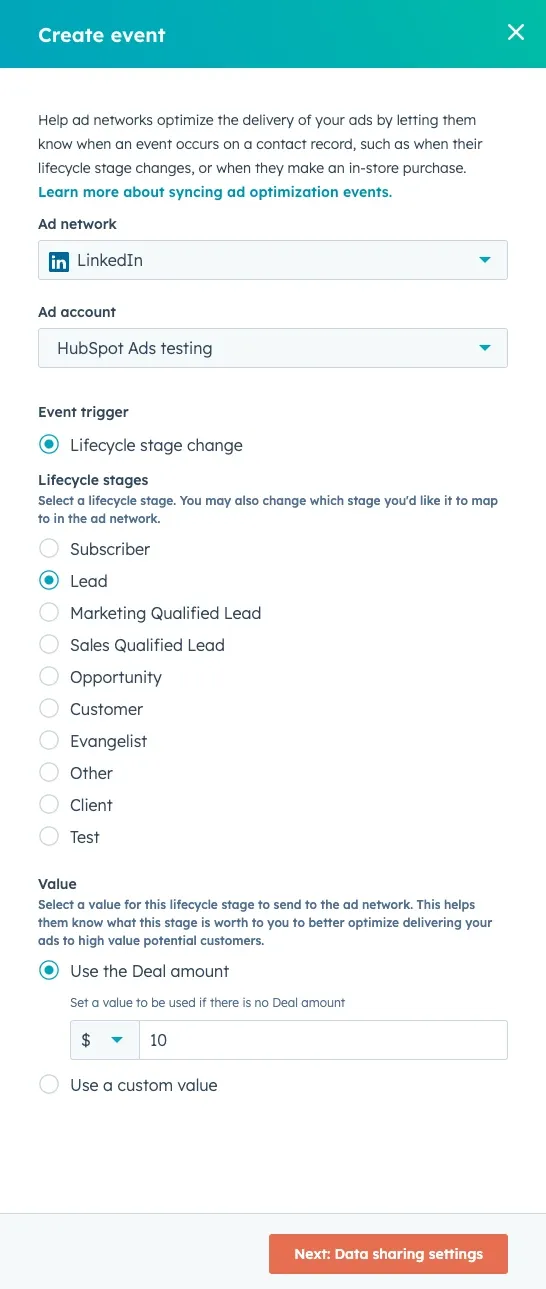
HubSpot allows you to create conversion events that automatically sync lifecycle stage changes to LinkedIn. The number of events you can create depends on your subscription:
- Marketing Hub Starter: Up to 5 conversion events
- Marketing Hub Professional: Up to 50 conversion events
- Marketing Hub Enterprise: Up to 100 conversion events
To create a new conversion event:
- In HubSpot, go to Marketing > Ads
- Click Create Event in the upper right
- Select LinkedIn as your ad network
- Choose your connected LinkedIn Ads account
Step 3: Configure Lifecycle Stage Mapping
Select the HubSpot lifecycle stage that represents your conversion. Common B2B SaaS lifecycle stages include:
- Marketing Qualified Lead (MQL): Prospects who meet your ideal customer profile and show buying intent
- Sales Qualified Lead (SQL): Leads that your sales team has qualified as ready for direct outreach
- Opportunity: Prospects actively evaluating your solution
- Customer: Closed-won deals
HubSpot automatically maps these to corresponding LinkedIn conversion types. However, you can customize this mapping within LinkedIn Campaign Manager if needed.
Step 4: Assign Conversion Values
Assigning accurate values to your conversions is critical for LinkedIn’s optimization algorithms and your own ROI calculations.
You have two options:
Option A: Use Deal Amount - The platform will automatically pull the associated deal value from HubSpot. If no deal exists or the deal is invalid (closed-lost or negative value), the system will use your specified default value.
Option B: Use Custom Value - Set a fixed dollar amount that represents the average value of this lifecycle stage change. For example, if your average SQL-to-customer conversion rate is 20% and your average customer value is $10,000, you might assign a $2,000 value to SQL conversions.
Step 5: Configure Data Sharing Settings
This step determines what contact information HubSpot sends to LinkedIn for matching and optimization.
Consent Management: LinkedIn recommends obtaining explicit consent before sharing contact data with third parties. You can configure this by:
- Creating a custom contact property in HubSpot to store consent status
- Adding this field to your forms as a checkbox
- Mapping this property in your conversion event settings
- Selecting the property value that indicates consent
Contact Data Selection: Choose which fields to share with LinkedIn. HubSpot uses SHA256 encryption to hash email addresses before transmission. For optimal matching rates, include:
- Email address (required)
- First name
- Last name
- Company name
- Job title
- Country
The more data points you provide, the better LinkedIn can match your conversions to ad interactions, especially for users with ad blockers or cookie restrictions.
Audience Scope: Decide which contacts to sync:
- All contacts: Syncs every contact that reaches the selected lifecycle stage, providing maximum data for optimization
- Only contacts with ad interactions: Limits syncing to contacts who have previously engaged with your LinkedIn ads
Most B2B SaaS companies should choose “all contacts” to give LinkedIn’s algorithm the most comprehensive dataset for optimization, particularly since B2B journeys often involve multiple anonymous touchpoints before conversion.
Step 6: Name and Create Your Event
Give your event a descriptive name that clearly indicates what it tracks (e.g., “SQL Conversions - Enterprise Campaign” or “Opportunity Created - Product Launch”). Click Create Event to finalize the setup.
Setting Up Conversion Rules in LinkedIn Campaign Manager
While HubSpot handles the data transmission, you still need to configure how LinkedIn attributes and reports on these conversions.
Creating Conversion Rules
- Log into LinkedIn Campaign Manager
- Navigate to Measure > Conversion Tracking
- Click Create Conversion and select Conversion API
- Enter a descriptive name (consider prefixing with “CAPI -” for easy identification)
- Select the appropriate conversion type that matches your HubSpot lifecycle stage
- Configure attribution settings:
- Attribution Window: How long after an ad interaction LinkedIn will credit the conversion (typically 30-90 days for B2B)
- Attribution Model: Last-touch attribution is default, but you can choose other models
Associating Conversions with Campaigns
Link your newly created conversion rule to relevant campaigns:
- In the conversion setup flow, proceed to the Sources step
- Select Direct API as the integration method
- Move to the campaign selection step
- Check the boxes next to campaigns that should track this conversion
- Save your configuration
LinkedIn will now begin attributing conversions that occur within your specified attribution window to the appropriate campaigns, ad groups, and individual ads.
Best Practices for B2B SaaS Companies
1. Create Multiple Conversion Events for Different Funnel Stages
Don’t just track closed-won deals. Create conversion events for multiple lifecycle stages to understand the full funnel:
- MQL conversion: Helps optimize for top-of-funnel volume
- SQL conversion: Optimizes for sales-qualified leads
- Opportunity conversion: Targets prospects likely to enter active evaluation
- Customer conversion: Focuses on ultimate revenue generation
This multi-stage approach gives LinkedIn’s algorithm more signals to work with and helps you optimize campaigns at different funnel stages.
2. Set Realistic Attribution Windows
B2B SaaS sales cycles vary significantly by product complexity and price point:
- Low-touch SaaS ($50-500/month): 30-60 day attribution window
- Mid-market SaaS ($500-5,000/month): 60-90 day attribution window
- Enterprise SaaS ($5,000+/month): 90+ day attribution window
Remember that LinkedIn supports up to 365-day attribution for certain conversion types (Lead, Qualified Lead, Purchase, Submit Application), allowing you to capture even the longest sales cycles.
3. Maintain Clean Data Hygiene in HubSpot
Since conversion syncing relies entirely on lifecycle stage changes in HubSpot, data quality is paramount:
- Establish clear criteria for each lifecycle stage
- Train your team on proper lifecycle management
- Implement automation to ensure consistent stage progression
- Regularly audit lifecycle stage data for accuracy
- Avoid manual stage manipulation that doesn’t reflect genuine conversion events
4. Monitor Sync Status and Troubleshoot Issues
LinkedIn conversions will initially show as “Unverified” until data successfully syncs from HubSpot. Once conversion data begins flowing, the status changes to “Active.”
Common issues to watch for:
- No conversions appearing: Verify your HubSpot-LinkedIn connection is active and check that lifecycle stages are actually changing for contacts who interacted with ads
- Low match rates: Add more contact fields to your data sharing settings
- Delayed data: While Conversions API typically provides near real-time data, allow up to 24 hours for initial setup
- Discrepancies between HubSpot and LinkedIn: This is normal due to LinkedIn’s attribution requirements, deduplication logic, and the 90-day click window
5. Combine Insight Tag and Conversions API
For comprehensive tracking, implement both methods:
- Use the Insight Tag for immediate website conversions (form submissions, trial signups)
- Use Conversions API for CRM-based conversions (opportunities, deals, revenue)
LinkedIn automatically deduplicates events that are reported by both systems, so you won’t double-count conversions. This dual approach minimizes signal loss and provides the most complete picture of campaign performance.
6. Test Before Scaling
Start with a single, high-priority conversion event:
- Create the event in HubSpot
- Wait for 5-10 conversions to sync
- Verify the data appears correctly in LinkedIn Campaign Manager
- Check that attribution makes sense for your known converted contacts
- Only then create additional conversion events
This measured approach prevents configuration errors from affecting all your campaigns simultaneously.
Comparing Integration Approaches
| Method | Best For | Pros | Cons |
|---|---|---|---|
| HubSpot Native Integration | Companies already using HubSpot CRM | No coding required, automatic sync, lifecycle stage mapping | Limited to HubSpot users, requires proper HubSpot setup |
| Zapier Integration | Multi-platform setups, smaller teams | Easy to configure, connects many tools, affordable | Slight delay in data transfer, ongoing subscription cost |
| Direct API Integration | Enterprise companies with dev resources | Maximum control, custom logic, real-time sync | Requires developers, ongoing maintenance, technical complexity |
| CSV Upload | Occasional imports, testing | No technical requirements, full control | Manual work, delayed data (24-48 hours), error-prone |
| Partner Platforms (LeadsBridge, etc.) | Companies needing specialized features | Specialized functionality, may offer additional features | Additional cost, another tool to manage |
Measuring Success and Optimizing Campaigns
Once your offline conversion tracking is operational, focus on these key metrics:
Conversion Rate by Campaign
Compare conversion rates across campaigns to identify which messaging, creative, and targeting strategies drive the highest-quality leads. Look beyond surface-level metrics like CTR to understand which campaigns generate actual revenue.
Cost Per Conversion
Calculate the true cost to acquire an SQL, opportunity, or customer. This metric is far more valuable than cost-per-click or cost-per-lead because it connects directly to business outcomes.
Conversion Path Analysis
Examine how long it takes for contacts to move through lifecycle stages. If MQL-to-SQL typically takes 14 days but Opportunity-to-Customer takes 60 days, you can set more accurate attribution windows and manage campaign expectations accordingly.
ROI by Ad Set
With accurate conversion values assigned to each lifecycle stage, you can calculate true return on ad spend. A campaign might have a higher cost-per-lead but generate more valuable opportunities, making it more profitable overall.
Common Challenges and Solutions
Challenge 1: Low Conversion Match Rates
Problem: LinkedIn reports far fewer conversions than HubSpot shows for the same lifecycle stage changes.
Solutions:
- Expand the contact data fields you’re sharing (add company, title, country)
- Verify that converting contacts actually interacted with LinkedIn ads in the first place
- Remember that LinkedIn can only attribute conversions within its 90-day window (or 365 days for certain types)
- Check that contacts have valid email addresses that match their LinkedIn profiles
Challenge 2: Delayed Attribution
Problem: Conversions appear in Campaign Manager several days after they occur in HubSpot.
Solutions:
- This is normal behavior—Conversions API typically syncs within 24 hours
- For manual CSV uploads, expect 24-48 hours or longer
- Ensure your HubSpot-LinkedIn connection remains active
- Verify no errors appear in the event status within HubSpot
Challenge 3: Discrepancies Between Platforms
Problem: The number of conversions reported in LinkedIn doesn’t match HubSpot data.
Solutions:
- Understand that perfect alignment is impossible due to different attribution methodologies
- LinkedIn only counts conversions within its attribution window after an ad interaction
- LinkedIn applies deduplication logic for contacts with multiple touchpoints
- Multiple contacts might share the same email, affecting match rates
- Some contacts may not have LinkedIn profiles or may have profiles with different email addresses
Challenge 4: Conversions Not Optimizing Campaigns
Problem: You’re sending conversion data, but campaign performance isn’t improving.
Solutions:
- Ensure sufficient conversion volume (LinkedIn needs meaningful data to optimize—aim for at least 50 conversions per week per campaign)
- Verify you’ve assigned accurate conversion values
- Check that your target audience is large enough for LinkedIn to optimize effectively
- Give campaigns time—optimization typically requires 2-4 weeks of consistent data
- Consider whether your creative and messaging align with the audience most likely to convert
Privacy and Compliance Considerations
With increasing privacy regulations like GDPR and CCPA, responsible data handling is essential:
Obtain Proper Consent: Before syncing contact data to LinkedIn, ensure you have appropriate consent. Use HubSpot’s consent field functionality to only sync contacts who have explicitly agreed to data sharing with third parties.
Use Data Encryption: HubSpot automatically hashes email addresses using SHA256 before transmission, but verify that your overall data handling practices meet regulatory requirements.
Provide Transparency: Update your privacy policy to clearly state that contact information may be shared with advertising platforms for conversion tracking and campaign optimization purposes.
Honor Opt-Outs: If contacts request data deletion or opt out of marketing, ensure they’re removed from conversion syncing flows.
Regular Audits: Periodically review which contact fields you’re sharing and whether each field is truly necessary for conversion attribution.
Advanced Strategies for Sophisticated Marketers
Account-Based Marketing (ABM) Integration
For B2B SaaS companies running ABM campaigns, consider creating conversion events specifically for target accounts:
- Create a custom HubSpot property to identify target accounts
- Set up separate lifecycle stages or custom events for target account conversions
- Configure higher conversion values for target accounts
- Use this data to optimize LinkedIn campaigns specifically for reaching key accounts
Multi-Touch Attribution
While LinkedIn uses last-touch attribution by default, you can build a more sophisticated attribution model by:
- Tracking all LinkedIn touchpoints in HubSpot using campaign parameters
- Creating custom reports in HubSpot that show the full journey
- Using this data to inform budget allocation decisions, even if LinkedIn’s interface only shows last-touch credit
Predictive Lead Scoring
Combine LinkedIn conversion data with HubSpot’s lead scoring capabilities:
- Identify which LinkedIn campaigns generate leads with the highest conversion rates
- Assign higher lead scores to contacts from those campaigns
- Prioritize sales follow-up accordingly
- Feed this learning back into LinkedIn targeting to find more similar prospects
Conclusion
Setting up offline conversion tracking between HubSpot and LinkedIn Ads transforms how B2B SaaS companies measure and optimize their advertising performance. By connecting the dots between initial ad interactions and eventual revenue, you gain the insights needed to make data-driven decisions about campaign strategy, budget allocation, and creative development.
The setup process, while initially requiring some configuration work, pays dividends through improved campaign optimization, more accurate ROI measurement, and better alignment between marketing and sales teams. As LinkedIn’s algorithms receive more comprehensive conversion data, they become increasingly effective at identifying and reaching prospects most likely to become customers.
Start with a single, high-priority conversion event, validate the data flows correctly, and gradually expand your tracking to cover your entire funnel. Within weeks, you’ll have a much clearer picture of which campaigns drive real business results—not just clicks and form fills, but actual revenue.
Offline conversion tracking is one component of a full RevOps implementation. See our complete RevOps on HubSpot guide for B2B SaaS for the full stack: lifecycle stages, lead scoring, attribution dashboards, and cross-channel reporting
FAQ for “How to Send Offline Conversions from HubSpot to LinkedIn Ads: A Complete Guide for B2B SaaS”
- Why is offline conversion tracking important for B2B SaaS?
- Offline conversion tracking connects ad interactions to long-term revenue outcomes, helping you attribute conversions that occur outside LinkedIn’s native tracking (e.g., phone calls, in-person sales, or CRM-based conversions). It ensures better visibility into true ROI.
- What are LinkedIn’s conversion tracking methods?
- LinkedIn offers two main methods: the Insight Tag for online conversions and the Conversions API for both online and offline conversions. The Conversions API provides more comprehensive tracking, capturing CRM-based and offline sales data.
- How do I set up offline conversion tracking between HubSpot and LinkedIn Ads?
- First, connect HubSpot to LinkedIn, then create and configure conversion events in HubSpot. These events will sync with LinkedIn Ads, allowing you to track lifecycle stages like MQL, SQL, and closed-won deals. Ensure proper attribution settings and data sharing configurations.
- What are the benefits of using both the Insight Tag and Conversions API?
- Using both methods ensures comprehensive tracking. The Insight Tag captures immediate website conversions, while the Conversions API tracks CRM-based conversions, phone calls, and other offline actions, providing a full view of campaign performance.